Compare programs in Grid or List view, search the catalog and open the collection that fits your plans.
The Programs catalog brings illustrated covers, subjects and intended audiences into one searchable view. Choose Grid to browse covers or List to compare the program descriptions.
Open a program to explore its book collection, then follow a cover to the edition you want to review. Every program has its own address, so a curriculum discussion can start from a shared page.
The descriptions introduce the material and its intended scope. Use them to narrow your selection before reviewing the curriculum for your institution.
Grade and language-level books have dedicated pages with their own descriptions and matching banners.
Individual grade and language-level books now have dedicated pages with their own descriptions and matching illustrated banners. Selecting a cover opens the book page and keeps a route back to its program collection.
Share an edition’s address when discussing a particular grade or language level. For example, Brightway A1 has a direct page within the Brightway collection.
The pages introduce the books and their intended audience. They provide a place to compare editions as you review the material for a course.
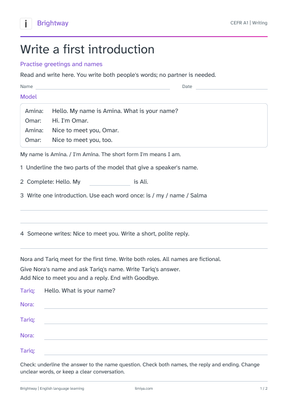
Search classroom resource previews by program and inspect an activity on its own page.
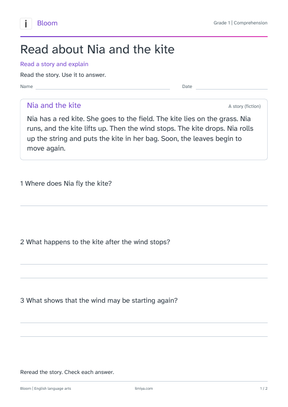
The resource library brings worksheet previews and program labels together, with search to help you find an activity. Each resource opens on its own page with a description and preview image.
Compare the task with your teaching goal before choosing it. Check the reading demand and response format alongside the topic, so the resource fits the learners who will use it.
Search the Guides directory and read focused articles on instruction, assessment and running a learning program.
Guides return to Resources with search and a choice of List or Grid view. Open a topic from the directory to read the full article, with section links to help you find the part you need.
The library covers instruction and assessment alongside the work of running a learning program. It gives teaching teams a shared place to begin a planning conversation and follow related topics.
Draw, highlight and add notes on a temporary online board, then export the result as a PNG.
Open Whiteboard for a diagram, worked example or set of notes while an explanation develops. Draw and highlight on the board, add text, and pan or zoom when the idea needs more room.
Undo lets you revise a mark during a discussion. Fullscreen gives the board more space for presenting, and PNG export lets you keep an explanation for another lesson.
The board is temporary and clears when you leave. Export the image before closing the page if you want to retain it.
Use a countdown or stopwatch, and compare city times when planning a remote learning session.
Clock brings a countdown timer, stopwatch and world clock into one place. Set a duration for independent work, pause when the class needs more time, or measure an activity with the stopwatch. Fullscreen gives the display more room during a lesson.
Compare city times when planning a remote session. City and time-format preferences stay in the browser. Keep the page open while timing an activity, since a reload resets the active timer or stopwatch.
Choose a city, review the calculation settings and explore athan recordings without requesting device location.
Choose a city to see its daily prayer timetable and review the calculation settings. The tool calculates times on your device and keeps the selected city in this browser, without requesting device location.
You can also explore athan recordings from the same tool. Check the calculation choices and follow your local mosque’s guidance when confirming the timetable for your community.
Switch a public page to a simple text view, copy its Markdown and keep reading as you follow site links.
The footer’s Markdown control opens a simple text view of a public page. Copy its Markdown or open the raw file when you want to review the text in another tool.
Internal links preserve the reading mode as you move around the site. The preference lasts for the browser tab, and the same control returns you to the visual page. Form values and private information stay outside the generated Markdown.