
Rewards
Rewards is Ilmiya’s behaviour point system, used by administrators to define positive and negative point values that staff/teachers can award to students to track conduct and performance.
Overview
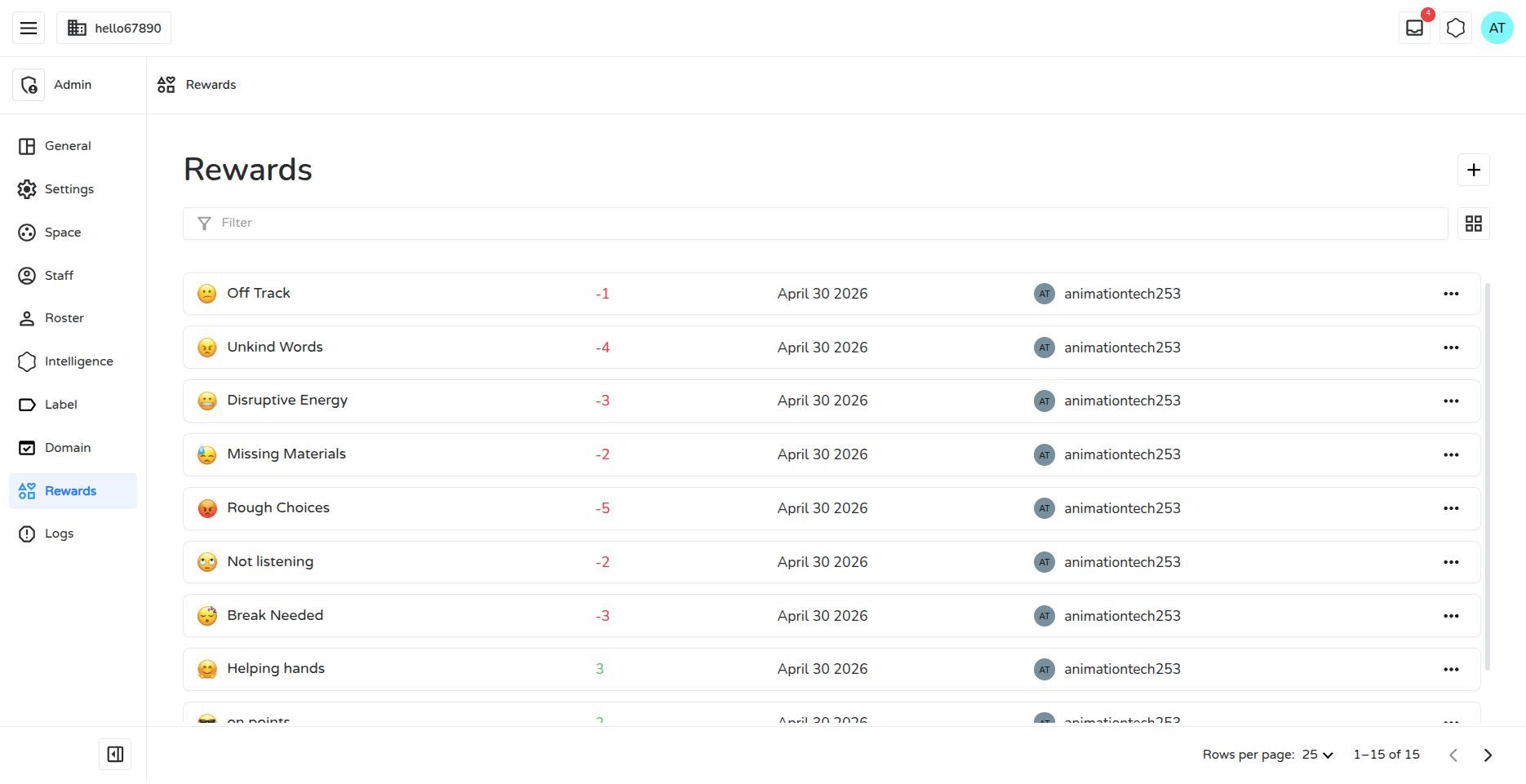
Section titled “Overview”The Rewards page lists all reward definitions created for the organization, with a List view and a Grid view toggle.
Creating a Reward
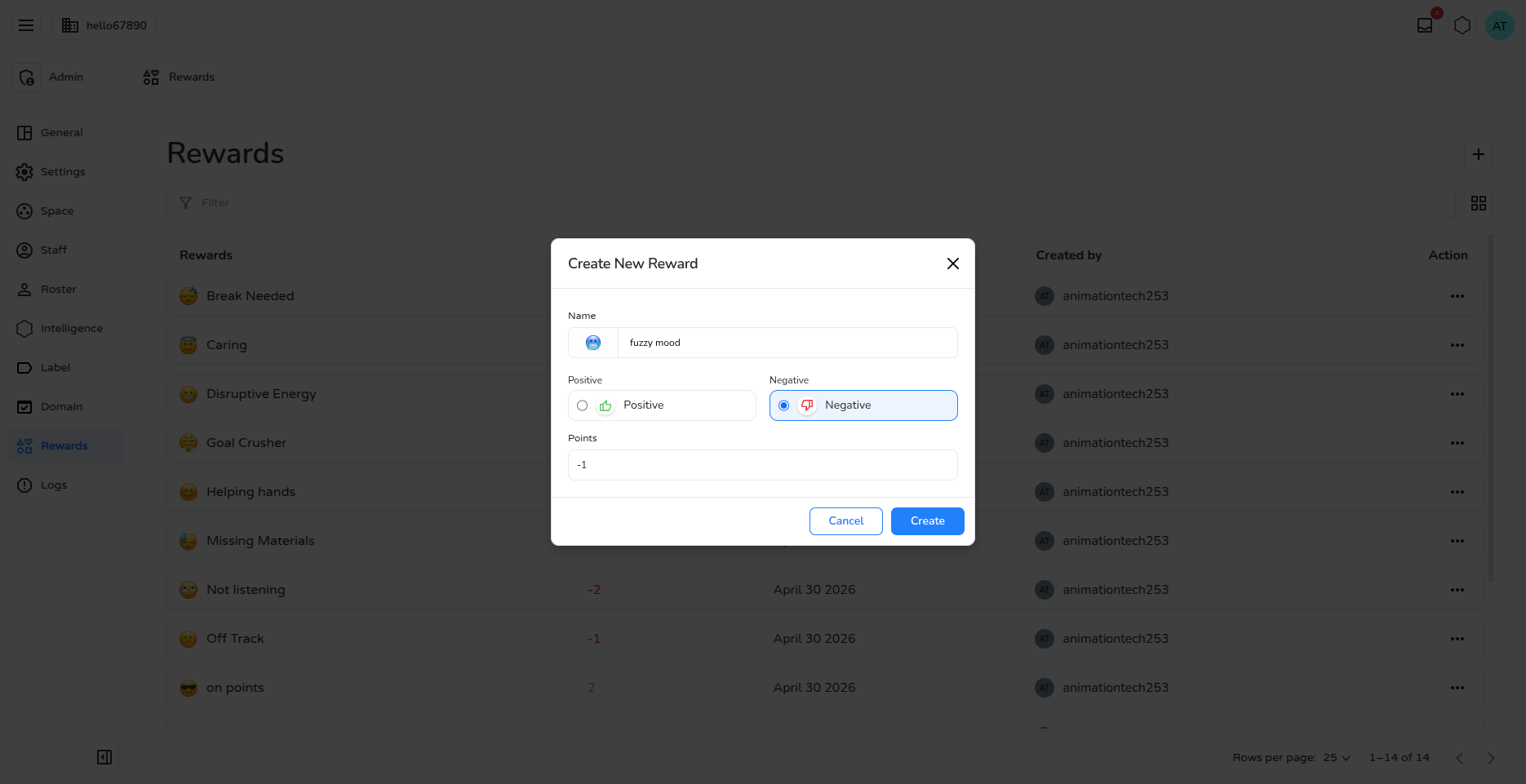
Section titled “Creating a Reward”- Click the ”+” button — this opens the “Create New Reward” modal.
- Name — enter a title, and optionally pick an icon/emoji from the image picker.
- Type — choose Positive or Negative using the two selectable cards (thumbs-up / thumbs-down).
- Points — choose a value from 1–10 from the points dropdown. The sign is applied automatically based on the selected type (e.g., Negative + “5” is stored as -5).
- Click Create to save.
Managing Rewards
Section titled “Managing Rewards”Each reward in the list has an Action menu (⋮) with:
| Action | Description |
|---|---|
| View | Opens a read-only preview of the reward |
| Edit | Re-opens the creation form pre-filled, to update name, type, or points |
| Delete | Permanently removes the reward definition |
Reward List Columns
Section titled “Reward List Columns”| Column | Description |
|---|---|
| Rewards (Name) | The reward’s name and icon |
| Points | The point value — shown in green for positive, red for negative |
| Creation date | When the reward was created |
| Created by | The admin who created it, with their avatar |
Search & Sorting
Section titled “Search & Sorting”The list can be searched by name. Clicking the Name, Points or Creation date column header sorts the list by that column, toggling ascending/descending. The Created by column is not sortable.
Assigning Rewards to Students
Section titled “Assigning Rewards to Students”Once created, a reward’s history of use appears on a student’s profile under their Rewards tab (inside Roster/Directory), showing:
| Column | Description |
|---|---|
| Reward | Name of the reward given |
| Date | When it was given |
| Points | Point value awarded |
From this tab, an admin can remove (unassign) a previously given reward from a student, individually or in bulk via multi-select. Assigning a reward to a student is done by teachers in the classroom-facing app — the admin Rewards page is where reward types are centrally defined/managed and where their usage history can be reviewed or reversed.
Loading Markdown…
Markdown could not load. or open the raw file.