
Roster
The Roster module is where an admin manages the organization’s students — from viewing the directory, to managing an individual student’s profile, to monitoring which students are currently active.
Accessing the Roster
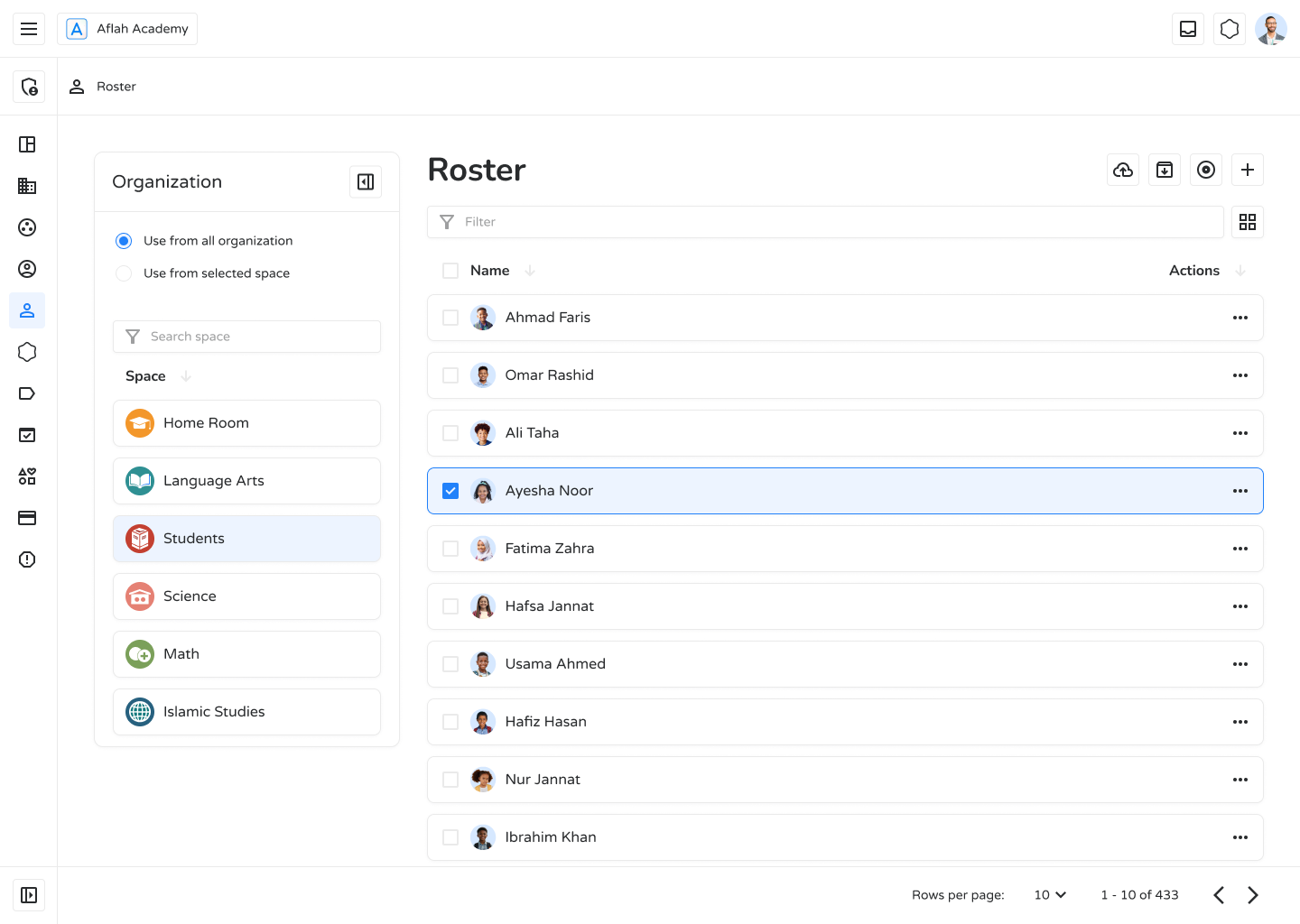
Section titled “Accessing the Roster”Roster opens to a two-panel layout:
- Left panel — Choose the scope: Users from all organization (every student) or User from selected Space (pick a class from a searchable list to narrow the view to just that class’s students).
- Right panel — The student list itself, reflecting whichever scope is selected.
Browsing the Student List
Section titled “Browsing the Student List”- Search — A single filter box searches students by name.
- View toggle — Switch between List view (table) and Grid view (cards).
- List columns — checkbox, Name (avatar + display name), Username, Actions.
- Grid cards — student photo, display name, username, and an action menu.
The list loads progressively as you scroll (infinite pagination).
Acting on a Student from the List
Section titled “Acting on a Student from the List”Each row/card has an action menu:
| Action | Description |
|---|---|
| Add to Space | Assign the student to a class |
| Edit Student / View Profile | Opens the full student detail page |
| Remove User | Removes the student from the currently selected class only |
| Archive Student | Moves the student to the Archive |
| Delete User | Permanently deletes the student |
Clicking directly on a student’s name opens a Quick-View card with their photo, name, username, Grade, Family, Last seen date, Badge, Rank, Trophies, Points, and Streak — plus a shortcut into their full profile.
Bulk Actions
Section titled “Bulk Actions”Selecting multiple students via checkboxes brings up a selection bar with:
- Archive — Archive all selected students at once.
- Delete — Permanently delete all selected students at once.
- Export — Download the currently selected students (or, with nothing selected, every student in the current view) as an .xlsx spreadsheet (Name, Username).
Managing the Student Profile
Section titled “Managing the Student Profile”Opening a student leads to their detail page, organized into four tabs, used in this order:
a) Overview
Section titled “a) Overview”The student’s core profile:
- Personal Info — First Name, Last Name, Username, Student ID, Date of Birth, Gender.
- Labels — view and manage which labels are attached to the student.
- Family — view the linked family, or link one via Add Family.
- Login — view Login Instructions (QR code), and manage Email/Password.
b) Records
Section titled “b) Records”The student’s notes/history log, searchable, with List/Grid view, showing each record’s title, creation date, and creator.
c) Rewards
Section titled “c) Rewards”The student’s full behaviour/reward history: which rewards were given, when, and their point value, with the ability to remove (unassign) entries individually or in bulk.
d) Spaces
Section titled “d) Spaces”Every class in the organization, with a toggle per row to add or remove the student from that class directly.
Assigning a Family
Section titled “Assigning a Family”From the Overview tab, Add Family opens a searchable list of the organization’s families (List/Grid view). Selecting one and confirming links that family to the student.
Archiving & Restoring
Section titled “Archiving & Restoring”Toggling to the Archive view shows previously archived students. From here, students can be restored back to active status, or permanently deleted, individually or in bulk.
Bulk-Importing New Students
Section titled “Bulk-Importing New Students”Reached from the Roster’s import action, this opens a spreadsheet-style screen:
- Fill in students manually (First Name, Last Name, Username, Email, Password, Grade) or upload a .csv/.xlsx file.
- Username, Email, and Password auto-fill as First/Last Name are typed in (fully editable).
- Review and fix any flagged rows (missing fields, duplicate emails/usernames, invalid formats).
- Click Finish to import all valid rows in one batch.
A summary confirms success, and lists any entries that failed (e.g. duplicates already in the system).
Login Instructions (QR Code)
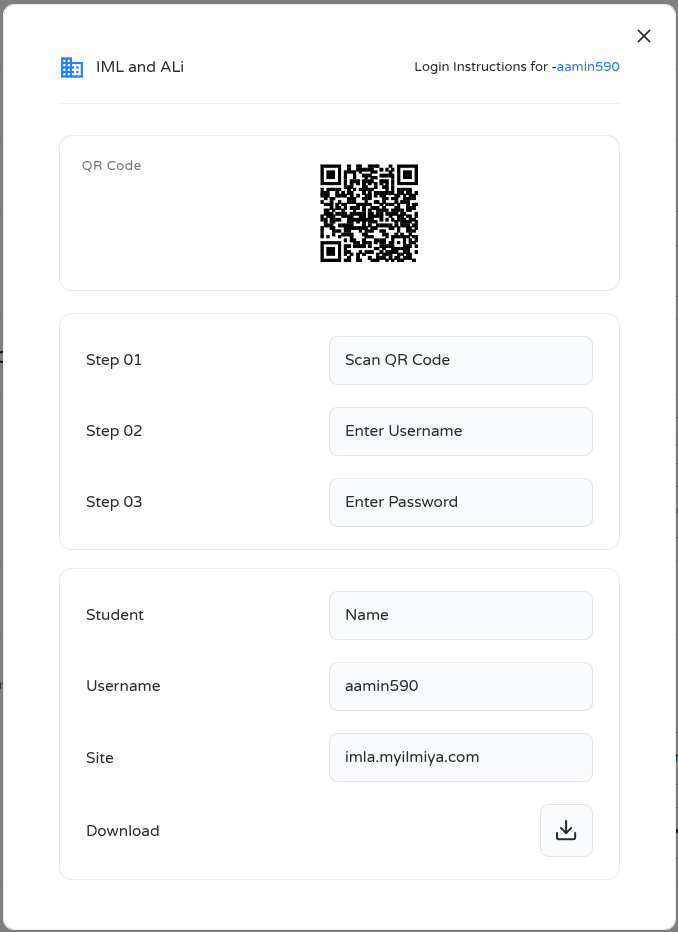
Section titled “Login Instructions (QR Code)”From a student’s Overview tab, Login Instructions opens a card showing:
- Header — the organization’s logo and name, and “Login Instructions for [username]”.
- QR Code — a scannable code the student can use to sign in directly.
- 3-step guide — Step - 1: Visit Site → Step - 2: Enter Username → Step - 3: Enter Password.
- Login details — Username and Site (the sign-in URL), for manual entry.
- Download — saves the login instructions (QR code included) for printing or sharing.
Streams (from Roster)
Section titled “Streams (from Roster)”Streams gives admins a real-time view of which students are currently active, reachable from the Roster’s Stream shortcut (scoped to the same Space if one is selected in Roster).
Summary cards — Total, Active, Signed In, Signed Out — updating live as students come online or go offline.
Student list — Shows students with their current status, in the same active-first ordering used in Analytics Streams. Each row shows the student’s photo, name, and a colored status dot:
| Dot | State | Color | What it means |
|---|---|---|---|
| Active | Green | Currently engaged in a lesson or activity | |
| Idle | Yellow | On a lesson, but paused (no interaction for about 5 minutes) | |
| Away | Orange | Signed in and connected to the app, but not currently inside a lesson, quiz, or assignment | |
| Offline | Red | Not signed in, or the connection has dropped entirely |
The list can be searched by name, username or email.
QR page — A toggle switches to a full-screen organization login QR page, showing the same 3-step sign-in guide for students who need to log in.
Why the Roster Matters
Section titled “Why the Roster Matters”- User Management — Keeps a complete, up-to-date record of all registered students.
- Security & Access Control — Monitors real-time activity and login access to flag unusual account behavior.
- Efficiency — Streamlines student oversight and reduces the overhead of administrative tasks.
The Roster page is a vital tool for administrators — enabling efficient, secure, and organized management of students across the Ilmiya platform.
Loading Markdown…
Markdown could not load. or open the raw file.