
Notifications
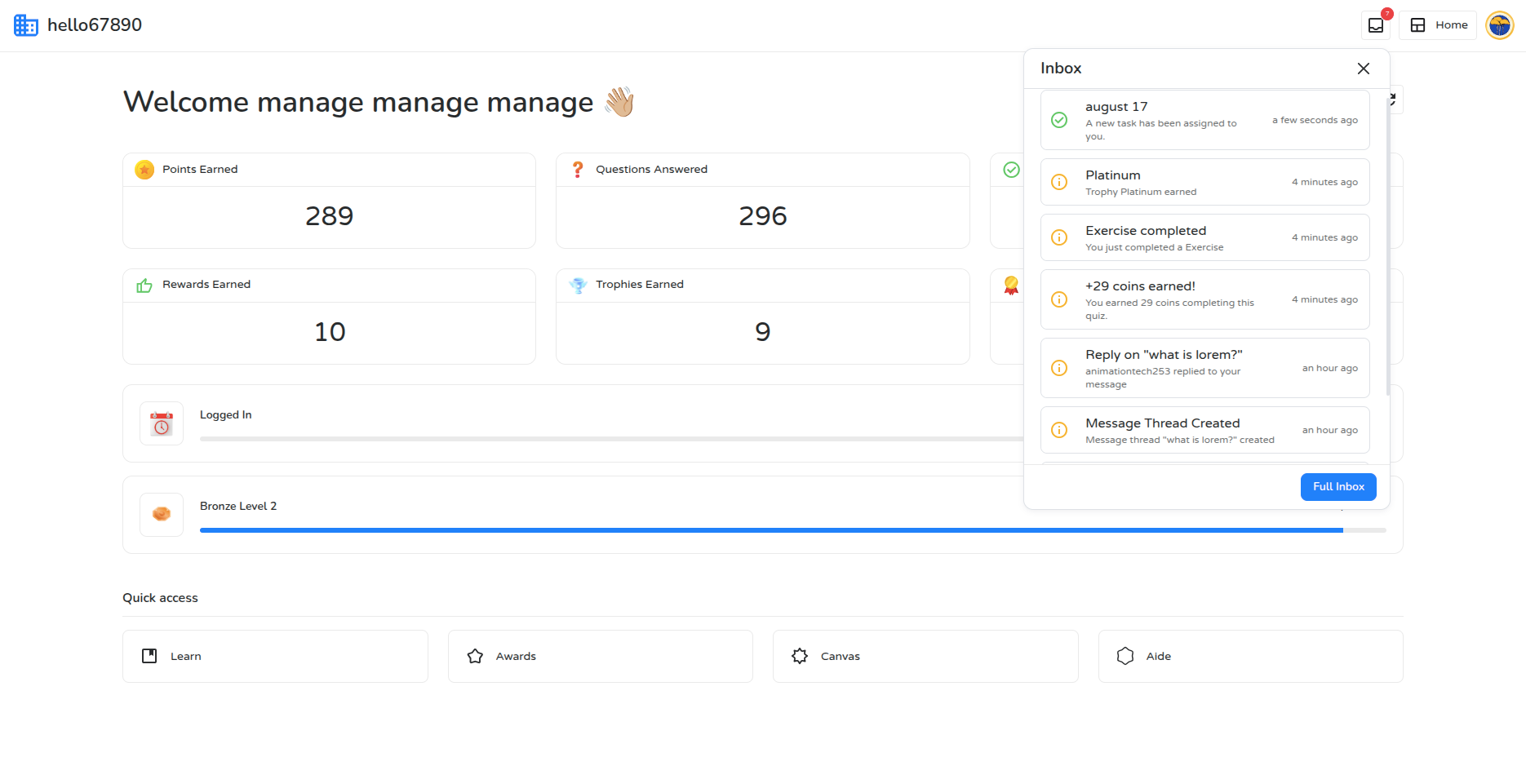
Campus keeps you updated with real-time notifications for your activity, progress, and messages — all accessible from the Inbox icon in the top bar.
Notification Types
Section titled “Notification Types”| Notification | When it happens | Takes you to |
|---|---|---|
| New Task | A teacher publishes a new assignment | Learn |
| Badge Earned | Your lifetime coin balance crosses a threshold | Awards |
| Trophy Earned | You perform well on a quiz | Awards |
| Streak! | Your daily activity streak continues | Awards |
| Streak Lost | Your streak breaks | Awards |
| Reward | A teacher assigns you a behaviour reward | Awards |
| Leaderboard | Your rank changes | Awards |
| 30 Minutes! | Your total learning time crosses 30 minutes | Awards |
| Mastery | You reach “Expert” or “Proficient” mastery on a quiz | Awards |
| Points Summary | You earn coins from correct quiz answers | Awards |
| Message reply | A teacher or admin replies to your message thread | Messages |
| Thread resolved | Your message thread is marked resolved | Messages |
| Added to channel | A teacher adds you to a discussion channel | Discussions |
| New post/comment/reply | Activity happens in a channel you’re part of | Discussions |
| Answer marked | A teacher marks your answer in a channel | Discussions |
| Live game invite | Someone invites you to a live game session | Live lobby |
How It Works
Section titled “How It Works”- The Inbox icon in the top bar shows a badge with your unread notification count (displays “99+” once it goes over 99).
- Notifications arrive in real time — no need to refresh.
- Each notification shows a title, a short description, and a relative timestamp (e.g. “3 minutes ago”).
- Clicking a notification marks it as read and takes you straight to the relevant page.
- Click Full Inbox to open the complete Inbox page, which has three tabs:
- Discussions — your channel activity
- Messages — your message threads with teachers/admins
Popup Notifications
Section titled “Popup Notifications”For key moments — earning a badge, streak (or losing one), reward (or having one removed), leaderboard change, 30-minute milestone, mastery achievement, a new task, or a live game invite — Campus shows a full-screen animated popup.
Settings
Section titled “Settings”- There’s no per-user control over individual notification types.
- Organizations can turn popup notifications on or off platform-wide (managed by an admin) — this only affects popups, not your Inbox list.
- Notifications are in-app only; there’s no email or push notification channel.
Loading Markdown…
Markdown could not load. or open the raw file.