
Frame Your Identity
Your profile picture helps staff, students, and other guardians quickly recognize you in the Classroom Portal. Follow these steps to upload or change it.
How to Update Your Profile Picture
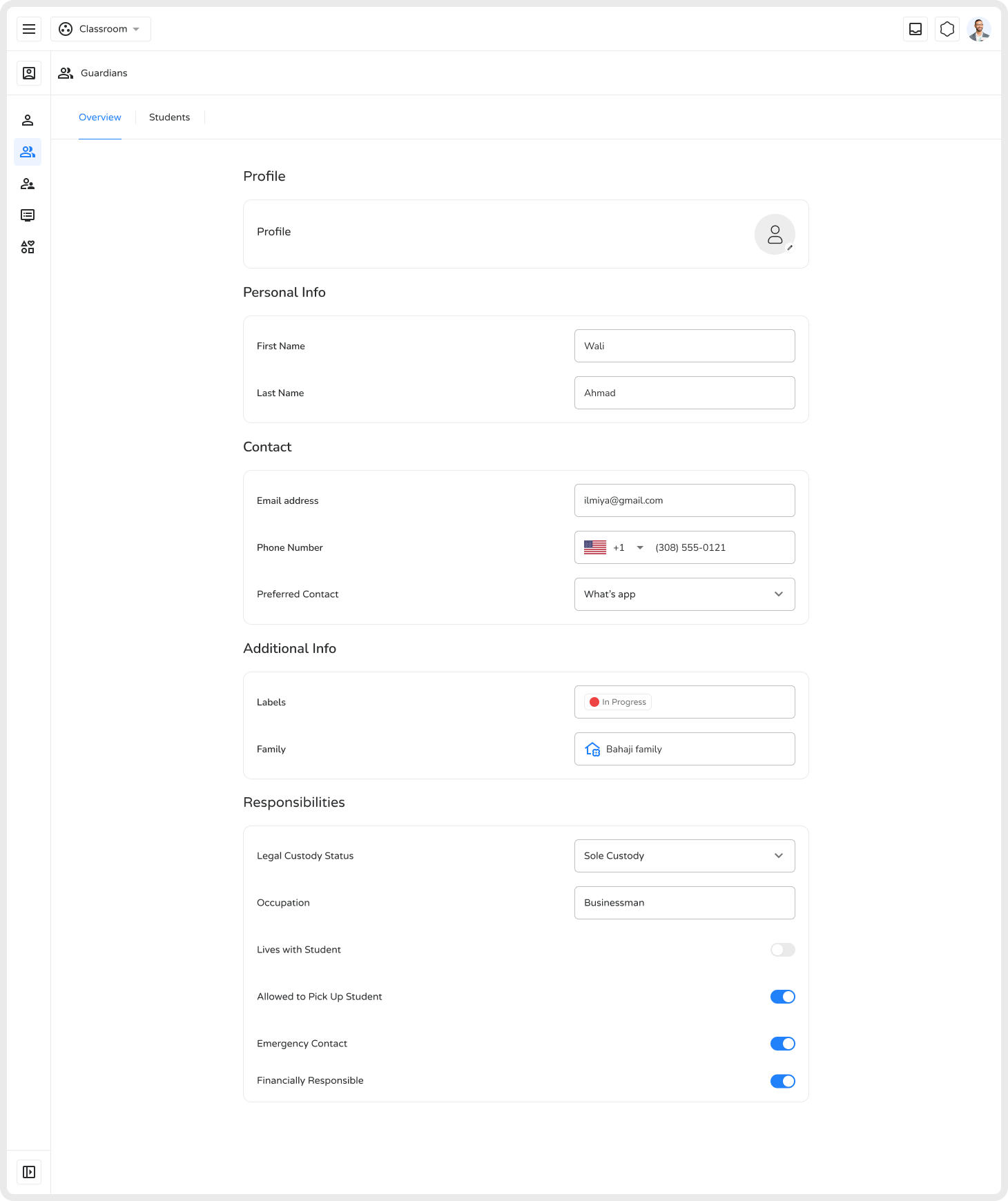
Section titled “How to Update Your Profile Picture”- Go to Guardians from the left sidebar, then select Overview.
- Your profile info, including the photo section, will appear at the top.
- Hover over the profile photo placeholder and click the pencil/edit icon.
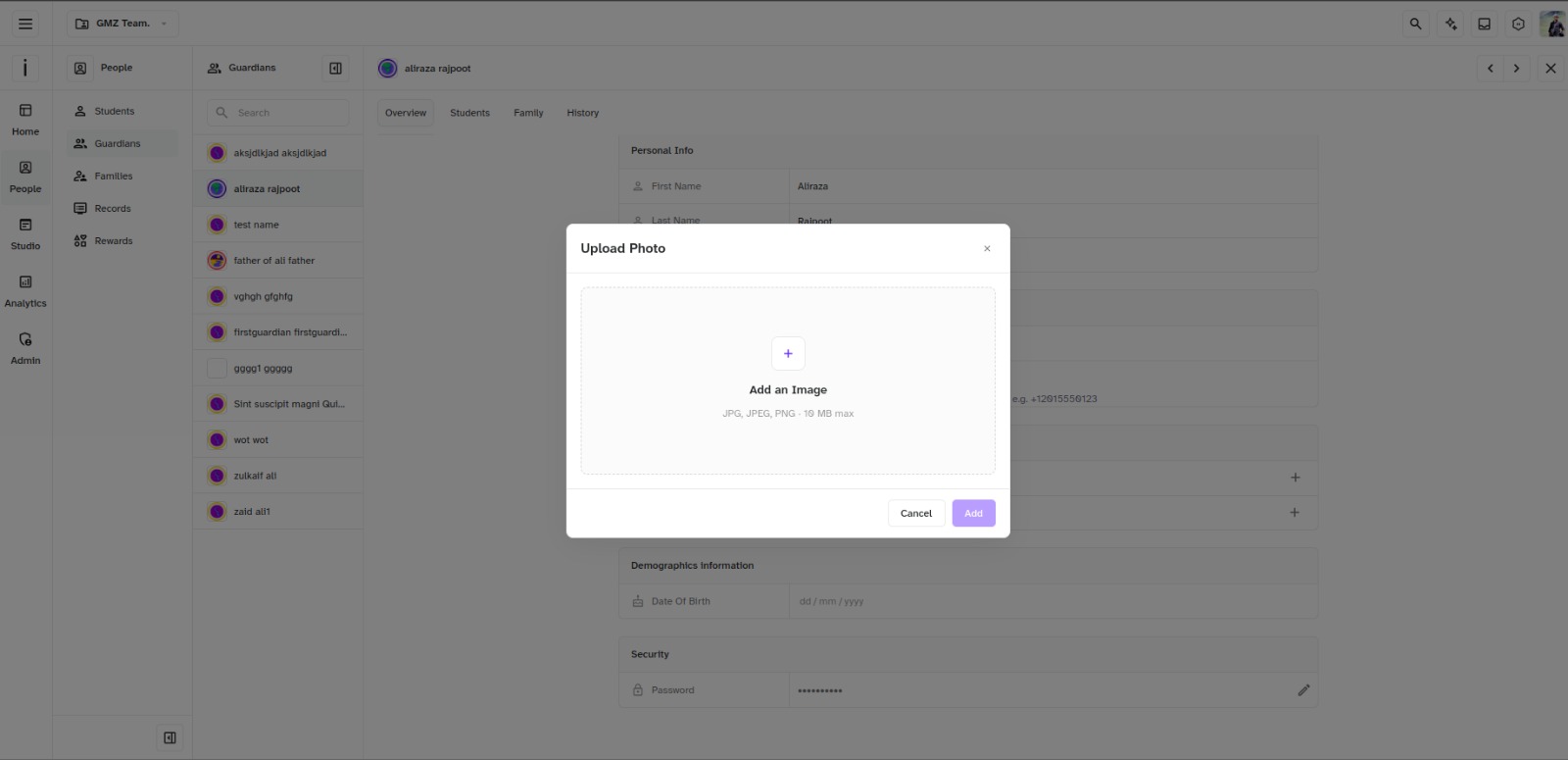
- A pop-up titled Upload File will appear on screen.
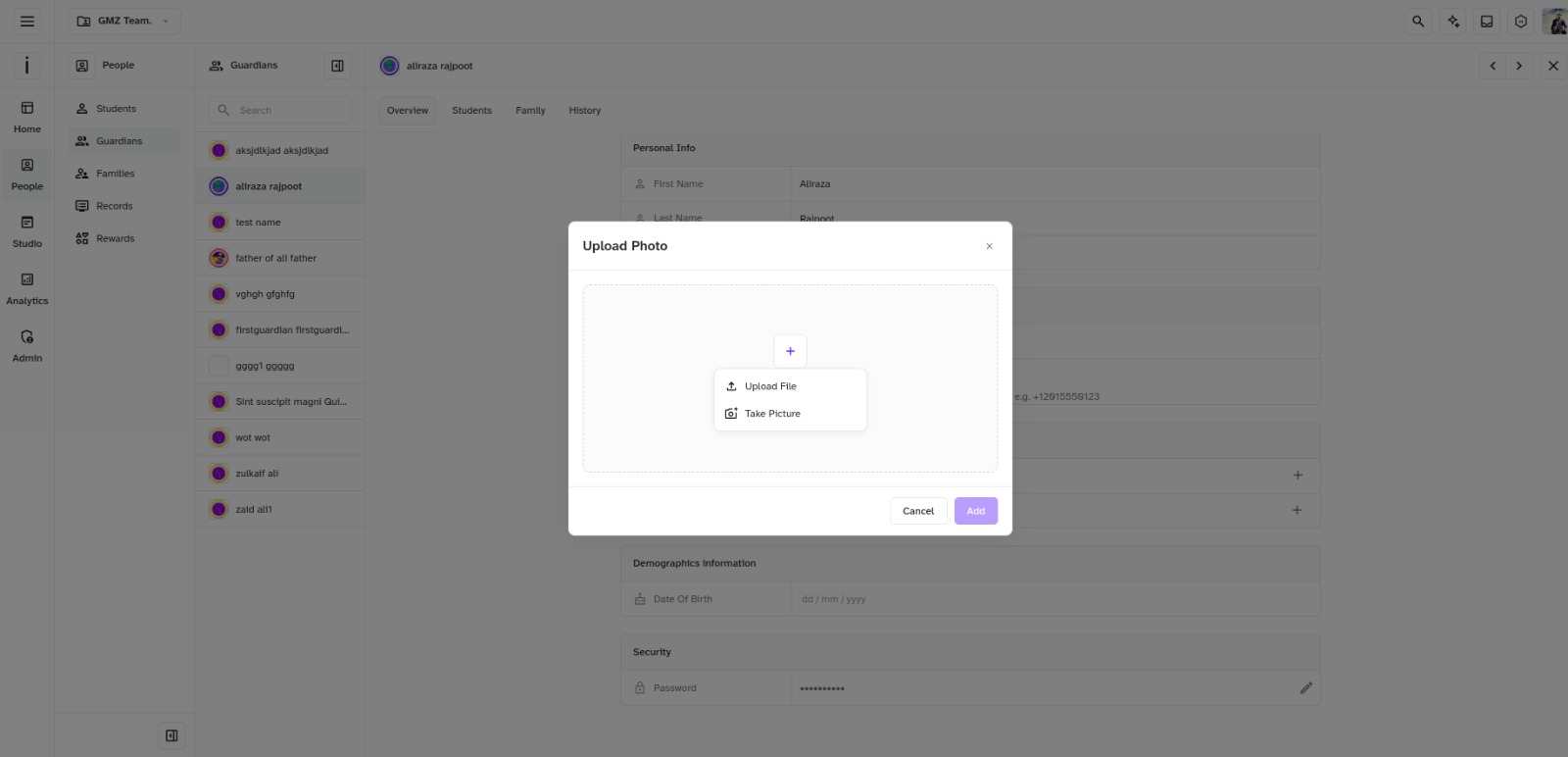
- Choose one of two options:
- Upload File — Upload from your computer
- Take Picture — Capture a new photo with your device
- Click Upload File, select an image under 10 MB, and click Add.
- Click Cancel if you decide not to upload.
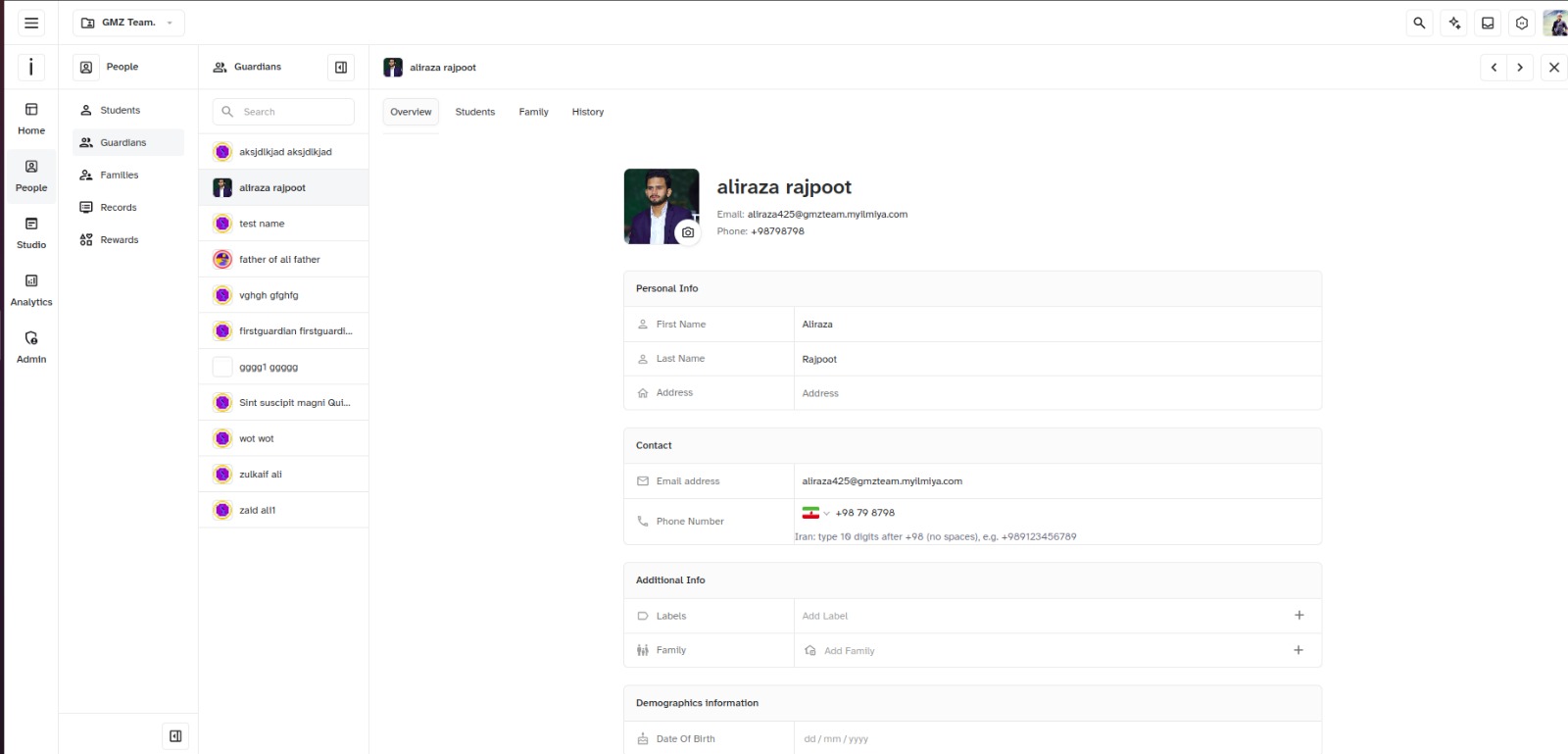
- The uploaded photo will automatically appear in your profile and replace the placeholder across the portal.
Tips for a Good Profile Picture
Section titled “Tips for a Good Profile Picture”- Clear, front-facing photo
- Well-lit with a visible face
- Simple background for professionalism
Updating your profile picture personalizes your account and improves recognition and communication in the portal.
Loading Markdown…
Markdown could not load. or open the raw file.